Darlene Nguyen

Darlene created RFA In 2013 with the goal of sharing simple yet detailed drawing tutorials with other artists on the world wide web. She is a self taught pencil portrait artist and Youtuber.

How to Make a Kneaded Eraser | EASY

How to Make a Kneaded Eraser

This is my favorite type of eraser. It can be molded into any shape to erase even the tiniest detail in a drawing – you just need to dab and lift. No rubbing required.

Kneaded erasers are quite affordable, but since we’re all in Covid-19 lockdown right now, you may not even be able to buy one. So here’s how you can make it yourself, out of tools that you can probably find around your house.

How to Make a DIY Kneaded Eraser Putty At HomeYou can make a kneaded eraser out of pretty much any solid eraser that you have, even the one on the end of a pencil, just by rubbing it on a piece of paper to create crumbs and then kneading the crumbs together into a putty.

Make sure you knead the putty very well until it becomes one single piece that can be molded into different shapes.

But the results will be varied because some erasers just crumble instead of stick together no matter how hard you work it. But don’t worry, I will show you how to fix that!


I tested a total of 10 different erasers and they can all be turned into putty/kneaded erasers, some work better than others, though.

This white Paper Mate eraser (pictured below) was immediately usable after just a few seconds of kneading. It became a perfect eraser putty that held its shape well no matter how I molded it. If you also experience that with your eraser, you’re good to go! You can skip straight to the section titled “Extra Tips for Making a Kneaded Eraser”. If that’s not your experience, please continue reading…

How to Make a DIY Kneaded Eraser Putty At Home


How to Make Eraser Putty from a Super Crumbly Eraser

If your eraser is super crumbly no matter how much you knead the crumbs together, we can still make it work. We just need to add a few more steps to the process.

How to fix a crumbly eraser All you have to do is add something sticky to make the crumbs stay together. The best way to do this is to rub your eraser along the sticky side of masking tape, painter’s tape, or the sticky part of a sticky note.

Just rub your eraser along the sticky side until the sticky stuff or adhesive comes off and is incorporated into the eraser crumbs. This works well with tape that isn’t too sticky. Masking tape works perfectly. I wouldn’t use duct tape for this.

If the consistency is way too sticky for your liking, you can always add some dry eraser crumbs until the consistency is just right for you. A test that I like to do, is to see if I can easily roll the putty to a point and also flatten it down without it changing shape or crumbling.

Incorporating dry eraser crumbs into a sticky piece of putty

If you don’t have any tape, just go around the house looking for stickers that are easy to peel off like barcodes or labels that you don’t need. Some water bottles will have adhesive under the label!

I would not recommend using liquid school glue because once the glue dries, the eraser becomes totally solid and unusable. Glue sticks on the other hand will work okay, but it’s not as sticky as I’d like it to be.


If your crumbs DO stick together when you work them between your fingers, but the putty isn’t quite soft enough for your preference or it’s a little crumbly, you can either…

Method #1:

Use tape adhesive to make it softer.

Just rub your eraser along the adhesive a few times and then gather the softer putty and mix it with the hard or crumbly one.

Keep doing this until it’s soft enough for you. Here’s a comparison between a piece of putty before and after adding the adhesive. As you can see, it fixed our crumbly issue and it’s more pliable and more putty-like now.


Method #2:

The other solution is to try erasing a bunch of pencil scribble marks and then kneading your eraser to incorporate that graphite into it.

After a while, this will help the putty become softer, more pliable, and more effective at erasing.

It’s normal for the putty to become grey, as it takes on the color of the graphite particles. This is also how you can break in a brand new store-bought kneaded eraser.


Now, every eraser and adhesive will give you different results, so experiment with your own recipe to come up with something that works for you. Keep in mind that the more you erase with your newly made putty, the more effective and pliable it will become.


I prefer a fairly sticky eraser because it can easily pick up graphite with just the slightest touch, so I can work on very detailed areas of a drawing. Keep tweaking your eraser recipe and testing how well it can erase until you’re satisfied. Do keep in mind that some erasers work a lot better than others at picking up graphite. So I’d recommend trying this with a few different types of erasers.


What type of Solid Eraser Works Best?

I was able to convert ALL the erasers that I tested into actual working kneadable erasers.

Some worked perfectly right after I kneaded them, others required different amounts of adhesive added to them because they were either not soft enough, not sticky enough, or they were too crumbly to begin with.

Even extremely crumbly erasers like the Pink Pearl can be converted into a kneadable eraser.

The ones that I found worked best were these:

In putty form, they’re able to hold their shape when molded and pick up graphite easily using the dabbing technique.


Here are my RESULTS with each eraser that I tested:

Notes: I judge how good each eraser is by how well it erases (how many dabs it takes to erase something), how well it holds its shape when I mold it/when I use it to erase something. Erasers ranked as mediocre are still viable, they’re just less effective to work with (eg: it may require more effort to erase with)

1. Sakura Latex-Free, Non-PVC Eraser
Quick to knead. Doesn’t require adhesive. Makes a great kneaded eraser.

2. PaperMate PVC-Free Eraser
Quick to knead. Doesn’t need any adhesive. Makes a great kneaded eraser.

3. Tombow Mono Plastic Eraser
Quick to knead. Somewhat crumbly. Needs some adhesive or graphite to soften it up. Makes a great kneaded eraser. Will become stiff when it cools back down from the warmth of your fingers, so it requires kneading before use. You can use this to your advantage, though – using it as both a solid eraser and putty eraser. It can hold its shape extremely well for erasing the tiniest areas.

4. Pentel Hi-Polymer Eraser
Quick to knead. Somewhat crumbly putty. Needs some adhesive to fix crumbliness. Makes a good kneaded eraser.

5. Dixon HB Pencil from dollarstore, latex-free
Takes some effort to knead. Not crumbly, but feels drier than all the solid erasers listed above. Works better without adhesive, but it is quite stiff. Makes a good kneaded eraser after you mix it with some graphite.

6. Random white eraser from an old pencil case.
I probably haven’t used it in like 12 years (It was so stiff that it didn’t even feel like rubber. It still worked anyway. I was able to quickly form it into a putty without any adhesive. Makes a good kneaded eraser.

7 & 8. Paw Patrol Erasers from dollarstore
Quick to knead. Crumbly putty. Needs some adhesive. Makes a good kneaded eraser.

9. PaperMate Pink Pearl Latex/PVC-Free Eraser
Extremely crumbly. Needs a lot of adhesive to become putty. Makes a mediocre kneaded eraser because I need to dab many times to erase.

10. Studio HB Pencil from the dollar store
Extremely crumbly. Needs a lot of adhesive to become putty. Makes a mediocre kneaded eraser because it requires so much adhesive, that it becomes difficult to mold into certain shapes without sticking to my fingers. If you don’t need it to erase hairline marks, it will do a good job.


Extra Tips for Making a Kneaded Eraser

Tip #1:

As you erase more and more (incorporate more graphite into your putty), it will become softer and more effective at erasing. That’s a good way to soften a stiff piece of putty without having to add any adhesive. It’s also a good way to break in a brand new store-bought kneaded eraser. It’s normal for the putty to turn grey, as it takes on the color of the graphite particles.


Tip #2:

The more eraser crumbs you make, the bigger your eraser will be, of course, but it’ll take hours and a lot of hard work to turn a large eraser like this into a big pile of crumbs. A safe way you can speed up the process is by using a more textured surface to rub your eraser on. Here, I’m using the side of my textured mechanical pencil:

I’ve been asked many times if a cheese grater can be used. While you can use one, it can be very dangerous, so I don’t recommend that.

And that’s how you can make a kneaded eraser at home! Which by the way is my favorite type of eraser. I hope you enjoyed this tutorial. If ya did, please share it with your friends and leave a comment down below to let me know your results!


How to Make a Kneaded Eraser | EASY Read More »

Ep 2: How to Fix Asymmetrical Eyes – Fix My Drawing Series

Hey! You’re reading episode 2 of the “Fix my Drawing” series, where I take common drawing mistakes and walk through possible solutions with you.

In this episode, let’s look at how to fix eyes that were not drawn symmetrically, as suggested by Paulo Austria on Youtube.

Let’s hop right in!


How to Fix Eyes that were not Drawn Symmetrically

The first step is to pick your favorite eye so we can use it as a baseline. My favorite is the left eye, so I will be making changes to the right eye.

To fix this asymmetrical drawing, we’ll need a long straight object. You can use a pencil, a ruler or even another piece of paper.


Pencil Method

Let’s try doing it with a pencil first. This is the tool I recommend out of all 3 because I think it will help you develop your “seeing” skills a lot faster, but it may take a bit of practice to get a hang of.

The idea is to hold the pencil parallel to the paper’s edge. Hover your pencil in front of the drawing to see which areas of the drawing are not aligned with one another. Once we do this, mistakes will immediately become apparent.

For example, we can clearly see that the outer corner of each eye are not aligned with each other and we can see exactly how much we need to move it up or down so that they will match.

Move your pencil up and down along your drawing to check the horizontal alignment of other areas like the eyelid crease for example. It’s important when you’re doing this to make sure the pencil remains level or parallel to the paper’s edge. This is assuming that your subject is drawn straight on instead of at an angle.

Note: If your subject is drawn at an angle, you’ll need to hold your pencil at an angle too. In this case, it will be helpful to draw an actual reference line across the drawing, so you can keep your measurements consistent as you work.

Here we can see just how much higher the left eyelid crease is than compared to the one on the right (about 2mm apart). As you go along, checking the horizontal alignment of your drawing, make the appropriate changes.


It will take some practice to get used to using your pencil in this way. I currently have this drawing laid out flat on my desk because it’s the most comfortable way for me to draw while recording. But I recommend doing this with your drawing in an upright position so you can hold your arm out straight in front of you at eye level.

You can also hold the pencil vertically to check the vertical alignment of the different areas within your drawing.

Let’s switch back to the overhead view…

Again, hold your pencil as perfectly vertical as you can, so that your measurements are accurate. You can use the edge of your paper as a reference.

For this example, I’m checking to see where each eyebrow aligns with the eye below it. You can see that the left eyebrow extends about 3mm out from the corner of the eye.

But on the right, the eyebrow needs to be drawn much wider in order to match the other one:

Make the appropriate changes to your drawing as you go along, checking and re-checking the horizontal and vertical alignment of the various elements that make up your drawing.

You can measure and compare down to the tiniest detail if you want to improve your drawing symmetry, accuracy and “seeing” skills.


Ruler Method

You can also do this with a ruler. The ruler’s edge can be aligned directly to the edge of your paper for a more accurate placement.

A transparent one is extra helpful, allowing you to still see the entire drawing as you move the ruler up and down or right and left.


Paper Method

Another option is to use another piece of paper. A big piece will provide you with the highest level of accuracy because once you align its edge to your sketchbook, you’ll have a close to perfect horizontal or vertical line across the drawing.

If you want to watch all the changes drawn step by step, please watch the video version of this blog article: https://www.youtube.com/watch?v=AQ2icsQkdFI


So far, I’ve only talked about how to fix a problem that has already happened. To prevent this from happening in the first place, make measurements and comparisons before drawing the second eye. It’s also important to double and triple check your work:


I hope this episode was helpful!

Let me know what topic you’d like to see next using the hashtag #fixMyDrawing. You can also send me a copy of the specific drawing problem you’re currently struggling with and we’ll tackle it step by step.


Ep 2: How to Fix Asymmetrical Eyes – Fix My Drawing Series Read More »

Ep 1: Drawing Masculine VS. Feminine Features – Fix My Drawing Series

Hey! You’re reading episode 1 of the “Fix my Drawing” series, where I take common drawing mistakes and walk through possible solutions with you.

How to fix a drawing that looks too feminine femaleIf you’ve ever tried to draw a male, but he ended up looking more like a female instead… or the other way around, don’t trash your drawing because there’s always a way to fix it!

Let’s go step by step and pinpoint which facial features make a drawing look more masculine or feminine. I have a drawing of a female face here that I’m going to gradually change into a masculine one, one facial feature at a time, so that if you’re working on a drawing right now, you can easily pinpoint which changes you want to apply to your own drawing.

This blog will be broken into 2 sections:

  1. Conversion of female to male
  2. Conversion of male to female

If you want to watch the narrated video version of this blog, click here to you to watch it on Youtube.

Let’s get started!


Male to Female Drawing

Hair

For the purpose of this tutorial, I’m going to keep my character bald, so you can see how powerful it is when you apply changes to only the facial features. It’s easy to plop a stereotypical feminine hairstyle on a drawing and call it a female, but that’s sort of a lazy approach that we don’t want to depend on.

Eyebrows

Anyway, let’s move onto the first facial feature… the eyebrows. I’ll try to exaggerate the masculine features, so let’s create super thick eyebrows that are closer to the eyes and are less curved.

The function of eyebrows are to block sweat from entering the eyes, and men usually have larger, bushier eyebrows than women. You can add some additional stray eyebrow hairs around the eyebrow as well.


Eyes

As you can see, her eyes are outlined very thickly to accentuate or bring attention to her eyelashes.

When drawing males, I like to put less emphasis on the outline of the eye so it doesn’t look like he’s wearing eye makeup. If your eyes are drawn very thick and you don’t want to completely redraw them, simply make your outlines thinner.

If that doesn’t do it for you, try making his eyes more narrow by erasing just the eyelids and bringing them closer together.

Along with narrowed eyes, I’ve also given him hooded eyelids. You can learn how to draw hooded eyelids in my eye tutorial – that’s where the skin below the brow bone droops down and folds over the eyelid crease. That part is optional of course, but I think it adds to his masculinity because it can make the brow bone look more prominent.

The more testosterone a male has, the stronger his bone structure. So areas such as the brow, nose, jawline, and chin will all be larger in size.

Nose

Let’s work on the nose next. I’ll darken the bridge of the nose to make it look taller and chiseled. I like to give the bridge bone a wider and more distinct shape. Instead of a smooth outline for the bridge, I’m introducing angles. You can make the cartilage around the nose tip more apparent by outlining the shape, giving it a shadow.

Men have larger noses, in general, to provide more oxygen to the muscles, so let’s make the nostrils larger. Don’t forget to make the sides of the nose wider as well (you can also make them more angular).


Brow Bone

Next, let’s make his brow bone stronger, and by that, I mean, make it stick out more. To do that, we’ll need to add some shadows around it so it no longer looks flat. If your light source comes from above your character, you can add a shadow under the eyebrow. Feel free to adjust the shadow length and darkness to your liking. The darker you shade, the deeper the eyes will sink in and the more prominent the brow bone will appear.

If you have light coming from the front of your character’s face, shade the sides of the head and forehead to help bring out that protruding brow bone.


Lips

Let’s work on the lower half of the face now.

Okay, so large, full lips can indicate high levels of estrogen in females, so I’m making them narrower and less plump-looking. Something very easy that you can do to make lips look less plump is reducing the thickness or darkness of the lip outline.


Chin and Jaw

Moving on to the chin…

We can make the chin wider, longer or more angular. Keep in mind that a slight change can make a very big difference!

I’m making mine slightly wider and more angular.

One of the most effective things you can do to make a character look more masculine is to widen the jaw and make it more angular as well.

Body fat is also linked to testosterone, the primary male sex hormone…

The more testosterone your character has, the less fat tissue you might want to give him. Adjust the level of fat tissue based on your preference.

Now there’s only so much fat you can trim when drawing the outline of the face. So to reduce fat further, try to add some shading around the chin, mouth and/or cheeks to make them appear hollow. Some light shading may be all that you need.


Neck

The last area to work on is the neck. Here we have a narrow, slender neck. You can see that it’s currently vertically aligned with the outside corner of the eye.

I’m going to align it with the outside of the eyebrow instead, making the neck thicker, more muscular. You can add some more muscle along the traps and shoulders by drawing them higher.

To add to his muscularity, I’m going to further define his neck muscles and lower the amount of fat tissue by darkening the shadows of the neck. Let’s draw an adam’s apple too!


Less Masculine Features

RFA How to fix a drawing that looks too MasculineA small note I want to add is that not everything has to be so squarish and angular. It really depends on what look you’re going for. For example, the chin could be rounded, giving the face a softer presence.

Same thing with the jawline.

If you’re going for a less masculine look for your character, soften up some of the harsh angles. You can also make the eyebrows smaller, soften up the nose bridge or reduce some of the shadows to indicate a higher level of body fat.

Just play around with each feature until you get a balance that you prefer


Male to Female Drawing

Now that we’ve covered how to fix a drawing that looks too feminine, let’s see how we can do the opposite. Let’s say you’ve drawn a character who’s supposed to be female, but looks more like a male instead.

Nose

I’m going to start with the nose this time. Let’s make it more narrow and smoothen out the outline of the nose bridge (reduce sharp angles), which will make the overall nose appear softer. You can also reduce the nostril size as well.

Eyebrows

Let’s make the eyebrows more narrow and curvy. You can also play with the eyebrow height, drawing them higher to indicate higher levels of estrogen.

Cheeks

The average female has quite a bit of facial fat tissue, so let’s get rid of the shadows that make the cheeks look hollowed out.

Our character is starting to look quite androgynous at this point. Let’s see how many facial features we need to change before we tip the scale!


Lips

For females, I like to draw big lips and shade/outline the rim pretty dark so they appear plump and are more apparent. But of course, you can draw a female with narrow lips that are not at all plump.

Neck

Let’s make the neck look less muscular by making it more narrow. If you’re not sure how narrow to draw it, use the eye as a reference point. I’m aligning the neck to the end of the eye vertically.

Let’s lighten up the shadows of the neck to give the appearance of added fat tissue, making it look soft and supple. We’ll need to get rid of the adam’s apple as well.


Jawline

Okay, for the jawline, I’m going to make it less wide and less angular. I’m trying to soften up all the features. If your character’s jawline and chin are still too strong, try making it even more narrow.

Shadows

This shadow around the forehead makes her brow bone look very strong, so I’m going to erase these completely.


Eyes

The shadows under her eyebrows make her eyes look deep-set. There’s nothing wrong with that, but the darker these shadows are, the stronger her brow bone will appear, which is a very strong masculine feature. Once I erase the shadow, you can see how much softer the eye area will look:

Now that the shadow is gone, the brow bone looks less prominent.


Let’s enlarge those eyes.

For a line drawing like this, I like to make the outline around the top lid quite think so it looks like she has some eye makeup on.


One last thing…

Women generally have more body fat than men, but if you want to make the face look slim, try shading around the cheeks very lightly and/or around the chin.


Here’s a look at the total transformation:

How to fix a drawing that looks too masculineI hope you found this episode helpful! If you want me to address a common drawing problem that you have in a future episode, please let me know down below in the comment section. To watch this tutorial on Youtube, please click here.


Ep 1: Drawing Masculine VS. Feminine Features – Fix My Drawing Series Read More »

Pencil Shading Techniques Intro

I’ve always found shading to be the quickest way to add realism and depth to my drawings, be it portraits, concept sketches or even a quick doodle.

In this tutorial, I want to share with you 4 simple shading techniques that can help you achieve realistic textures and effects that will enhance your drawings and bring them to the next level.

Table of Contents:
4 Shading Techniques and How to Use Them
Combine Shading Techniques
Practice Shading Techniques

4 Shading Techniques and How to Use Them

Pencil Shading Techniques Intro 11

These techniques may look super simple, but that’s the beauty of it. Let’s see how they can be applied and how they can transform a drawing :)

Hatching

This is done by drawing lines that run in parallel or side-by-side. Since the lines are uniformly patterned, it works very well for shading things like wood grain, brushed metals and fingernails, just to name a few. A sharp pencil works great for conveying metallic textures, while a blunt pencil can help you achieve smoother strokes that will also be more easy to blend.

Hatching Example_Sharp vs Dull Pencil

Be careful when using this shading technique on round objects. If the strokes are not blended together well enough, it can make a round drawing appear flat. Here’s an example:

Example of Bad Hatching Shading Technique_Flat Shading

The straight lines take away from the drawing, making the viewer perceive the object as flat, instead of 3D.

Learn how to shade a round object such as an apple realistically using my shading tutorial for beginners.

Cross Hatching

This is where you draw lines that cross right through each other. They can go in any direction.

Shading techniques crosshatching example

It’s great for creating textures such as certain fabrics (predictable patterns) or even fine lines on the skin (random patterns).

Circulism

Circulism Shading Technique Example

This shading technique consists of many overlapping circular shapes. I use it frequently to shade realistic skin. It works well for conveying soft or fuzzy surfaces. The more you overlap the circles, the smoother the texture.

The tricky part is trying to control pencil pressure so each circle is similar in value.

Contour Shading

This is where you create lines that follow the shape of the subject you’re trying to represent. Contour lines can go in any direction.

They’re great for shading things that already display lines running along the surface, no matter how subtle. For example apples, onions, and lips. In this example, the lines also double as lip wrinkles too.

Learn how to draw and shade realistic lips.

Pencil Shading Techniques

Increasing the density of your marks can make shading appear darker, but true depth comes from building a full range of light and dark values. Not sure what that looks like? This shading tutorial shows the difference between flat shading and shading with depth, and where shadows should go.

Combine Shading Techniques

All of these shading techniques can be used in combination wherever you see fit. I used all 4 to shade this wrinkly hand. The combination of these techniques helped me achieve various textures commonly seen in wrinkled skin.

Starting with just the outline of a hand, I applied circulism as a base layer to give it a consistent texture all throughout – A texture that resembles subtle fine lines on the skin.

Hatching and contouring were used to show stretched skin that wraps around/across the shape of the hand.

Examples of hatching and contour shading

Hatching also works very well for shading nails, as mentioned earlier. Especially nails that have prominent stripey patterns.

Example of cross hatching

Cross-hatching was used very minimally to create realistic wrinkle patterns around the knuckles where the skin is thick. I varied my pressure to make some lines darker than others just to make it look more random and realistic.

Want to learn how to draw this hand and see the shading progression? Check out my hand drawing tutorial.

You don’t have to stick to these 4 shading techniques exclusively because there are many others you can use, or just make up your own to create the texture and look that you want for your drawing. Here are a few examples:

Pencil Shading Techniques

Practice Shading Techniques!

Here are some fun exercises you can do to practice. I’ve attached a free printout at the bottom of this article for you to use.

Exercise #1:

Pencil Shading Techniques

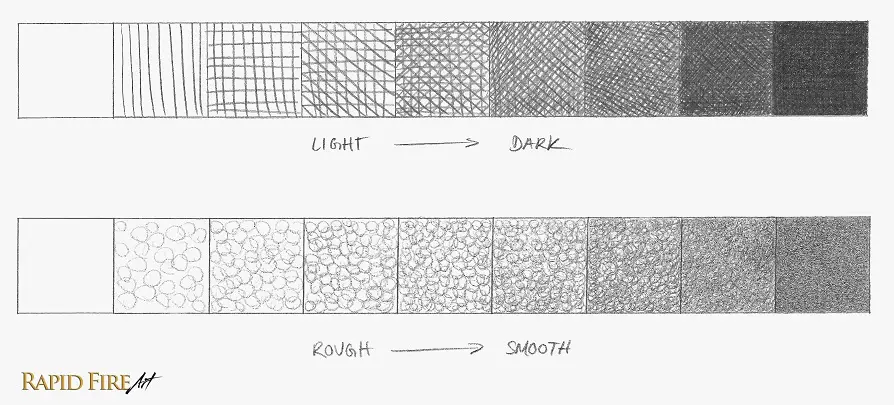
Draw a row of squares or rectangles and shade them from left to right using your shading technique of choice. Remember that the more pressure you apply, the darker your shading will be and the more densely you shade, the smoother it’ll be.

Exercise #2:

Shading Common Objects

Sketch a variety of common objects and shade them in using shading techniques that best describe the texture.

For example, I want to shade the toy horse above so it looks wooden. The hatching technique looks similar to wood grain, especially the lines vary in darkness:

Shading Techniques Practice_Hatching Rocking Horse

The burlap sack below is made of thickly weaved material. Cross-hatching would work for this one, but I wanna make the bag appear more 3D, so I’m using a combination of cross-hatching and contouring called cross-contouring. In shadow areas, I apply more pressure on the pencil, creating darker lines.

Shading Techniques Practice_Cross Contouring Burlap Sack 2

Teddy bears are usually soft and fuzzy. Do you remember which of the 4 shading techniques creates a soft and fuzzy texture?

If you guessed circulism, you’re right!

The more circles I draw, the softer the texture becomes…

Shading Techniques Practice_Circulism Teddy Bear

To make your shading look even softer, use a blunt pencil and/or blend the shading out with a blending tool such as a tissue, for example. Feel free to experiment with a different shading technique to see how it changes the look and feel of your subject!

You can combine shading techniques or make up your very own:

Pencil Shading Techniques

Here are a few objects you can use for practice. For each one, sketch it out and choose one or several shading techniques that will best describe the texture. For example, the wooden toy could be a mixture of hatching, contouring, and dashes.

Click here to download the image above (link will open in a new tab).

The texture that you choose to give each object is completely up to you. Stretch your creative muscles and have some fun with it! Feel free to shade outside of the lines or get rid of the outlines altogether.

Pencil Shading Techniques

You can practice with the shading techniques introduced in this tutorial, or create your very own :) Try using them in your own drawings and see how each technique changes the way your shading looks.

Prefer to learn by watching? See each shading technique demonstrated in the video below.

Ready to take the next step? Let’s build on all of this!

What’s Next?

Choose what you want to improve next:

Graphite Shading Basics for Beginners
Learn Where to Place Shadows

Understand light and shadow so your drawings don’t look flat.

Shading Exercise 1e
Practice with Guided Shading Exercises (Free Worksheets)

Build pencil control and improve your shading with simple exercises.

Apply These Shading Techniques to a Hand

Put everything together and shade a realistic hand.

Pencil Shading Techniques Intro Read More »

How to Draw Asian Eyes

One of the most distinctive features of southeast Asian eyes is that the eyelid crease is tapered instead of parallel with the top eyelid.

You can easily make any drawing of an eye go from, for example, Caucasian to southeast Asian by changing just a few aspects which we’ll dive into as we go along.

If you’ve already followed my other tutorials on drawing eyes, you can skip straight to step 4 because most steps are similar.

Step 1: Draw a Circle

Start by drawing a faint circle. This is the eyeball. It doesn’t have to be perfect because we’re going to completely erase it later.

Step 2: Pick an Angle

Eyes can slant in a variety of ways. Choose how slanted you want your eye to be and draw a line going through the circle at the angle you prefer.

Note: For this tutorial, the left side of my circle is going to be the inner side of the eye.

Step 3: Draw the Inner Corner of the Eye

You can use a wide variety of shapes for the inner corner of the eye. I drew a deep V shape, but you can also draw a U or a mix of the two, etc. It can be narrow, wide, shallow, deep, small or large.

Here are a few examples:

Step 4: Draw the Top Lid

While staying within the boundary of your circle, draw the top eyelid. It can take on a variety of shapes. A high arch will give you a large eye. I’m going for a medium sized one.

While you’re drawing it, picture the eyelid hugging the spherical eyeball.

When drawing caucasian eyes, I like to end my stroke at the intersection of the circle and straight line, but for an Asian eye, I like to extend my stroke just a little further:

I also like to do the same thing with the inner corner of the eye. It makes the skin look as though it’s in tension:

Step 5: Draw the Bottom Lid

Now let’s draw the bottom lid. Try to keep it close to the line we drew in step 2. The bottom lid should appear a lot less curved than the top one, but not completely flat/straight.

Step 6: Add a Crease

Here’s where we can make the eye look Asian or Caucasian. We’re going to draw a crease that runs above the top eyelid.

To make the eye appear Asian, taper your pencil stroke at the inner corner of the eye. The degree you taper it is up to you – In the example below, the eyelid crease is only visible at the very end.

For some southeast Asians, the crease may not be visible at all, and for others, it may even run parallel to the top eyelid instead of being tapered on one end.

Here’s an example of a parallel crease, which is common amongst people of Caucasian descent.

Step 7: Erase Outlines

Carefully erase all your construction lines: the circle and straight line.

Step 8: Add Some Details

Located at the inner corner of the eye is an area called the caruncula. It’s a soft pink bit of flesh that is separate from the eyeball. You can draw a curve or two right there to indicate the transition between the two forms. In the video at the end of this post, I’ll show you how to shade it.

To draw an iris of the right size, I like to measure the eyeball horizontally and divide the space into four. The iris will take up about 2/4’s of the eyeball. For example:

To draw a realistic looking iris, draw a full circle and then erase parts that fall outside of the eyeball. This step should be drawn lightly. Once you work out the position and size you want, darken the iris outline.

Step 9: Shade Your Eyes

To learn how to shade an eye and more, please refer to the video below.

Iris detailing – 5:43
Shading – 18:09
Eyelashes – 30:50

Learn how to draw more eye shapes here: How to draw 6 different eye shapes

I hope you enjoyed this tutorial! If you like it, please consider sharing it with your friends using the social share buttons below. Thank you!

How to Draw Asian Eyes

How to Draw Asian Eyes Read More »

LED Tracing Board Review – RH A4

A tracing board or light board is a flat electronic pad that emits light. It allows drawings on one sheet of paper to be viewable through another sheet or even multiple sheets. This makes it easier to trace sketches, full drawings, calligraphy and more. It’s also a tool for beginners learning how to draw from the act of tracing.

Today, I’m reviewing the RH A4 LED Tracing Board. I’ve always wanted a tracing board, so when GearBest asked me to review this, I immediately said yes!

This is a USB powered device, but the package does not come with a micro USB cable, just the light board, packing foam and a pre-installed protective sheet on the surface of the board.

The board is made of acrylic and the surface provides a nice grip for any smooth sketch paper or light drawing paper laid flatly upon it. It seems like the static and texture help hold the paper in place. When I lay a sheet of paper on the surface, it seems as though the board creates a suction effect which keeps the sheets of paper from moving, even when I push it with my hand (this is without the protective film).

Along the top and left border of the working area, there are measurements to keep track of scale. I think that’s useful for architectural drawings. I don’t know what I would use it for, myself.

On the back are 4 plastic stickers… I’m not quite sure what their use is. They’re definitely not for grip because of their slippery nature. My guess is they provide an easier way to pickup the board when placed on a flat surface.

At 5mm thick, it’s quite sturdy. I wouldn’t be afraid to toss it into my messenger bag for a drawing session out in the park.

I usually trace things by holding them up to a window during the daytime which gets very tiring for my arms. The tracing board allows me to trace while seated at my desk during any time of the day.

This model has 6 levels of light intensity, controlled by a touch sensitive switch. The first image below on the left is the board switched off. The following images to the right are the 6 light levels which illuminate evenly across the surface – no stripes or flickering.

The color temperature ranges from 13,000 – 17,000K with a lifespan of 50,000 hours.

I used it at night to trace and shade a portrait for 4 hours and was pleased to find that it did not cause any eyestrain and even after such long use on the highest brightness setting, the board did not heat up. Small details from the portrait were clearly visible through a layer of printer paper.

The board provides enough light even when using thick canson bristol paper on the brightest setting.

These images were taken in a room with double-glass doors on a bright sunny day.

I also tested it outside under direct sunlight on the highest brightness setting. It’s almost impossible to see the drawing underneath unless I’m in the shade:

Under the shade, I can make out quite a lot of detail through the printer paper. So while you can use it outside on a sunny, cloudless day, you’re better off in the shade. Tracing text or drawings with very broad lines should be super easy.

Overall, I’m very pleased with this tracing board. The only con being that it didn’t come with a micro USB cable… but I have too many lying around my apartment anyway. I’m stoked that I can add this to my artist toolbox now, replacing the whole window tracing thing that I do very often in preparation for my tutorials!

If you’re interested in learning more about this or picking one up for yourself, please visit GearBest for more info!


LED Tracing Board Review – RH A4 Read More »

Super Affordable Drawing Tablet Review – Veikk S640

Great drawing tablet that doesn’t cost an arm and a leg!

1 hour speed drawing using the Veikk S640

The Veikk S640 drawing tablet was sent to me by GearBest to review. At first, I wasn’t expecting much out of this drawing tablet because of the price. My initial thought was “I better lower my expectations because the price is so darn cheap”.

Lemme tell you… I did NOT expect this tablet to perform as well as it did!

Let’s start with the unboxing!

The minimalistic packaging contains:

⦁ 1 battery-free stylus with 8192 levels of pressure sensitivity
⦁ Felt stylus sleeve
⦁ 5.3″ x 8.5″ drawing tablet with built-in 57″ long USB cable
⦁ 10 extra stylus nibs
⦁ 1 nib remover
⦁ Instruction manual
⦁ Driver download information sheet

It’s basically a plug-and-play device. I was able to use it instantly after plugging it into my Windows 10 laptop via USB. Also, downloading the driver from their website was really straight forward — no searching under rocks for the right one!

After drawing a 1 hour long portrait, I found the tablet and stylus extremely natural to use and the pressure sensitivity, tilt sensitivity and responsiveness is honestly comparable to expensive “professional” tablets! I LOVE that it does what it needs to do without all the bells and whistles and at SUCH an affordable price. It’s freaking ridiculous!

It’s a quick scratchy drawing, but judging from the tablet’s performance, I can definitely use it to create professional commission pieces.

I’ve been using it to do other tests as well as browse the internet for more than 2 hours and so far, it has been great! My only complaint regarding software is when the stylus travels to the very edge of the screen, the cursor is stuck there for less than half a second before it becomes active again. I rarely travel to the edges of the screen while I draw, so I didn’t experience this during the speed drawing process.

I experienced absolutely no lag and the tilt sensitivity allows me to draw even at a 25 degree angle.

Here are some pressure sensitivity test strokes:


The stylus has 2 buttons which can be programmed to do various standard functions as shown below.

After using it with light to medium pressure for about 3 hours, the nib still looks completely brand new and the tablet surface remains unscratched.

Some people might prefer a more textured surface, but I love the smooth texture so much. The stylus just glides across the surface so effortlessly.

The tablet itself is 2mm thick on the drawing surface and 6mm thick along the side where the cable is attached, which makes a great hand grip when I’m using it on my lap. Its 4″ x 6″ active area is marked out by very faint white lines that are a little difficult to make out.

The material making up the drawing surface provides a sturdy structure to draw on and handle. It’s also super thin and light, which makes it very portable.

Overall, the tablet’s simplistic design is just so refreshing!


The bottom has 4 super effective rubber grips that are stuck on there very very well (tried sliding them off with my finger and they wouldn’t budge). Again, I’m honestly very impressed by this tablet and build quality for the price!

The only cons are…

  • The stylus buttons are too finicky, travel is too shallow for my preference, and it would be better if they were raised by an additional millimeter or more to make them easier to find.
  • A rubber grip on the stylus would be nice to prevent it from spinning while in use, which causes the buttons to move away from my thumb (the digit I use to press the buttons).
  • When the cursor/stylus travels to the very edge of the screen, the cursor is stuck for less than half a second.
  • No touchpad capability
  • Double-clicking is difficult unless you hold the stylus very still. Any lateral movement will make the tablet register your double-click as a single click. To combat this, I’ve programmed one of the buttons to double-click.

Honestly though, I think the pros far outweigh the cons, especially if you’re just starting out.


For the price, this is a truly amazing drawing tablet! If you’re interested in digital art and have been turned off by the expensive tablet prices out there, this one is a very affordable one to get you started. It’s definitely possible to create professional drawings on this tablet, whether it be for your own pleasure or for a paid client.

If you want to find out more about it, please click here. GearBest is having a sale at the moment and a September treasure hunt event as well.


Side Note:

If you’re using this tablet in GIMP, remember to enable stylus pressure under Edit > Input Devices. Then select “VEIKK Tablet Pressure Stylus” from the left menu and in the “Mode” dropdown menu, select “Screen” and hit save.

Super Affordable Drawing Tablet Review – Veikk S640 Read More »

How to Make Drawings POP!

In this tutorial, I’m gonna show you a few ways to give a flat drawing more depth.
Go grab a drawing that you wanna work on and try some or all of these tips to add an additional layer of depth or 3D-ness to it.
Let’s begin!

Tip #1: Apply Perspective

Perspective is used to give the illusion depth or distance on a 2D surface. So by applying it properly, you can push areas far away or pull them closer to you, which helps your drawing appear more 3D / pop out of the page.
If your drawing is a scene or a subject that recedes into the distance, remember that objects should look smaller and smaller as they move further away from the viewer. To draw a simple scene like this, you can use one-point linear perspective to find out the appropriate size to draw each object.
Just align the edges of your object to a single point in the distance, using a ruler.
Applying perspective properly sets a good foundation for your 3D drawings. For more content on perspective, visit lesson 6 of my beginners’ course.

Tip #2: Apply Blur

To heighten the illusion of perspective, just apply some blur to sections of your drawing.
For example, if you want the viewer to focus their attention on only one apple, let’s say… the second one from the left, you can blur all the others and remove some of their detail. Our eyes are drawn to fine details, so the fewer you add, the better.
Simply use a soft tissue to smudge the drawing until it becomes blurred.
The further an object is from the main focal point (the second apple), the more blurry it should be. This is very simple to do and it helps to heighten the illusion of depth. It makes far away objects look even further away than they were before. And objects that are close to you will look even closer.
If you want the viewer to focus their attention on the first apple instead, you can blur all the others, leaving only the first one looking sharp:
You have full control over what you want the audience to focus their attention on.
This technique is helpful for differentiating foreground and background objects from each other as well as imply distance.

Tip #3: Shade More

If your drawings usually have minimal shading and contain mostly white or whatever color your paper is (like the image above), it’s going to be very difficult to make it look 3D.
The first thing you can do is get more comfortable with shading the entire drawing, leaving only the brightest areas white or close to white — trying not to let too much of the bare paper show through. If you’re not sure how or where to shade, please click over to my shading tutorial before you continue with this one. It covers the topic of light, which is crucial for realism.

Tip #4: Use Gradients

A gradient is a gradual transition from light to dark or the other way around. It can be created by gradually pressing harder or softer as you shade.
Gradients exist because the further something is from the light or the more it turns away from it, the darker and darker it appears… generally speaking. So even objects with flat sides will display gradual changes in light intensity.
Here’s an example: for most beginners, drawing a deep crease or wrinkle might look like something like the image below — A set of lines on the surface of the skin.
The problem here is that it just looks like a line tattooed onto the skin’s surface.
Because the shading is a solid value, the skin looks completely flat. In order to curve the skin into a wrinkle, we’ll need to make it look as though it’s turning away from the light. This means, the skin should become darker and darker as it approaches the groove, making the transition from light to dark become gradual instead of abrupt.
This gradient forces our brain to perceive the wrinkle as a curved surface instead of a flat one.
So simply using lines to indicate wrinkles, folds or creases won’t do. Try to use gradients wherever possible to give all surfaces a more realistic sense of depth.
Don’t forget that the further a surface is from the light, the darker it will be. So even objects with flat sides will display gradual changes in light intensity:

Tip #5: Remove Obvious Outlines

Any outlines in your drawing can make it appear cartoony which takes away from any effort in making it appear 3D… because in real life, there are no outlines. So make sure they’re erased or try to blend them into their surroundings until they disappear.

Tip #6: Make Full Use of Your Pencils

Here’s an example of a flat drawing. Now, this may look familiar to you if you’re a very light-handed artist. The shading looks good but it still looks flat. And the reason is because it lacks value contrast.
Meaning, there isn’t that big of a difference between light and dark. Everything is just a light shade of grey.
Let me pull up a graphite value scale against the drawing to show you what I mean:
As you can see, my graphite pencil is capable of creating really dark values, but in the image above, only a small range is being used, which is kind of a big waste!

This makes the drawing look really flat.

To avoid this, apply a little more pressure while you’re shading or use the same amount of pressure that you’re used to but switch to a softer pencil than the one you’re currently using. That should give you a slightly darker value.
For example, if you’re using an HB pencil, switch to a softer one like a 2B or even 4B if you want.
When you shade with a softer pencil, your drawing should come out looking darker than it normally would. When you make this change, you’ll start to see your drawing take on a more 3D form.
So simply shading darker in general will create a more impactful drawing that’s much more interesting for your viewer to look at. As I increase the contrast, the drawing becomes clearly a few shades darker than the paper, which really helps to set the drawing apart from the background.
I like the overall level of shading that it has now. But it’s still not popping out of the page.
To add more depth, I’m gonna look for specific areas across the entire drawing where I can exaggerate or deepen the values without making it look unnatural. This requires some understanding of how light behaves. If you need a refresher, the shading tutorial is just a click away.
I’m gonna go for areas that are sort of hidden from direct light and reflections.
Darkening such areas can push parts of your drawing further into the background.
Here are a few examples.

Example #1:

Darkening crevices and nooks can push them further back. But you do wanna make sure it’s not over done. So work in layers, adding more graphite just a little bit at a time so you can save yourself from erasing later on.

Example #2:

Cast shadows, especially ones on dark surfaces are great areas to exaggerate.
You might have noticed a very subtle cast shadow along the part of the eyeball that’s directly below the top eyelid. I’m gonna exaggerate the darkest area along it which happens to be the iris.
There is a slight cast shadow here to begin with. Let’s see what happens if I add some darker graphite.
Now, the iris looks deeper, and even though I didn’t touch the top eyelid at all, it looks as though it’s been pulled towards us.
I know the changes between each image are very subtle. So if you wanna view it more clearly, please watch the video version of this tutorial: click here to watch it on Youtube.

Example #3:

If you’re drawing from your imagination, it really helps to understand some basic anatomy :)
For this example, I know I can shade the pupil much much darker because it’s actually a hole in the center of the iris that absorbs light. So it should appear very dark. It doesn’t look like a hole right now, but that will change as soon as I shade it some more:
Not every drawing needs to have such dark shades/values in it. Just do whatever is right for your specific drawing.
Looks like I’ve covered all the values in my scale…
You might have noticed that after adding all these dark shades of grey, the eyelashes and eyebrow look much lighter in comparison to the rest of the drawing, making the entire drawing look rather bland and uninteresting.
Dark values can create interest. guiding the eyes to look wherever you want them to. So to give the drawing more… of a balance, I’m going to darken the eyelashes and eyebrow as well:
That’s much better!
Now I’ve made full use of my graphite pencil by including all the shades it can possibly create. Of course you don’t have to use all the values in the scale, but it does make the drawing look a lot more interesting.
So… we’re done right? Not exactly!
We traveled far over to the right of the scale, but there’s still another value on the left, and that’s white!
If your drawing contains a lot of white areas already, this might not create much of an impact.
Okay, so here are a few areas that could use some brightening… these shiny, wet surfaces reflect a lot of light, so turning them white or close to white will make them pop, immediately:
Use an eraser to remove graphite in such areas. I like to use a kneadable eraser for high precision. For a very bright white, try correction fluid/white-out.
Use your dark and light values to continue to push and pull your drawing further. If your drawing doesn’t have any wet/shiny surfaces, just brighten your highlights further. When you do this, it helps to know where the light source is coming from so the patterns of light make sense and look as convincing as possible. Click here for the shading tutorial, if you need a refresher. In the image below, the ribbons in the eye, spokes, and eye whites have been lightened, among others.
Here’s a comparison between the drawing before and after.
Well, that’s it guys!
If you have any questions, leave them down below and if you have any before and after photos, I’d loooove to see them!!

How to Make Drawings POP! Read More »

How to Shade for Complete Beginners

How to shade for complete beginnersWhen you add light and shadow to your line-drawings, you can make your subject come to life by creating the illusion of form and depth.

You can make a flat line drawing jump right off the page or push things far away into the distance!

In order to shade better, here are 3 things you’ll need to learn…

  • Pressure control
  • How to shade smoothly
  • Understand how light behaves

There are more, but let’s keep things simple! I’m going to walk you through all 3 topics and then we’ll shade something together, step by step!

Let’s begin!

Pressure Control

Realistic shading is done by creating a series of values/shades ranging from light to dark. The harder I press down on my pencil, the darker the strokes will be.

Portraits displaying a limited value range, can end up looking very flat. While portraits with a wider value range will pop:

To have good pressure control, practice shading from one end of your sketchbook to the other while pressing harder and harder until the values get darker gradually.

Another way to practice is to draw a long rectangle and divide it into several squares. Fill the squares from right to left, start with the darkest value you can possibly make and work your way towards the lightest.

It’s important to maintain a consistent pressure between each back and forth stroke or each individual stroke. This will take some practice and concentration to develop the muscle memory for. Here’s an example of what I mean:

If you’re interested in the tools I use and want to learn more about the different pencil types. Check this page out.

Some tools can make shading easier for you, but you absolutely DO NOT need any special pencils to get started. Because you can draw and shade realistically with pretty much anything that can make light to dark marks! Here, let me show you! I’m gonna draw using this random stick I found in my kitchen. Once it’s burnt, I can use it just like a regular pencil. And it’s erasable too!

My point, is that any old pencil will do. There is no reason why you can’t start shading today. Really, the most important thing is just to start!

How to Shade Smoothly

To shade smoothly, try to keep your pencil strokes close together. Eliminate major gaps between your strokes while maintaining good pressure control.

Now, it’s difficult to eliminate gaps if your pencil is sharp. So what you can do is wear the pencil down until the tip is dull or use the side of the lead to draw so your strokes come out thicker:

If you’re shading a large area and want to avoid dark stripes (the ones that form when your strokes overlap each other), avoid using the writing grip while pivoting at the wrist. When you pivot from the wrist, your stroke length is very limited:

Instead, try using an overhand grip and pivot from your elbow and shoulder to achieve much longer strokes:

This is very useful for shading large areas such as backgrounds. Just remember to keep your strokes close together, eliminating gaps that can make your drawing look scratchy.

Understand How Light Behaves

Have you ever tried shading something over and over without it looking even close to your subject? For most beginners, shading is probably a guessing game. That’s totally what is was for me! Until I learned a few basics about light.

Things just started making more sense!

Knowing where to correctly add light or shadow can make a really big difference in how realistic your artwork will come across.

I’m going to use a sphere to point out the different elements of light because the patterns are a lot easier to point out than a complex form such as… a nose for example.

Here we have a plain wooden ball, with a light source coming down from the top left.

We have two distinct sides, the light side which is facing the light source and the shadow side which is turned away from the light.

Here we have something called a core shadow which is a dark strip running along the boundary between the two sides.

The core shadow is most visible on a white table because white is highly reflective. Light rays come down, bounce off the table and illuminate the shadow side of the ball, leaving a dark band.

So as you can see, we have two types of light. Direct light and reflected light.

That’s why shadows are rarely all black. There are so many things in the environment that light can reflect off of: walls, nearby objects or even dust particles floating around in the air!

Do keep in mind that black surfaces absorb light, so in the example image below, the core shadow is no longer visible:

Looking at the image below, can you tell which areas are lit by reflections and where the core shadows are?

Answer…..

As mentioned earlier, light rays can reflect off of many things in the environment, but they have a difficult time bouncing their way into tight spaces such as the area where the ball touches the table. This is called an occlusion shadow.

And where a form blocks light from reaching another, that’s called a cast shadow. In this case, the ball is blocking light from reaching the table.

The cast shadow can tell you where the light source is coming from. All you have to do is trace the edges against your object, like so:

You can also flip this around…If you’re drawing an entire scene from your imagination, you can specify a light source and create a set of lines resting against the edges of your object to find the cast shadow’s length.

How many cast shadows can you find in the image below?

Answer…..

Let’s take a closer look at the light side of the ball.

On this side, there are only 3 things I need to point out. There’s the core light which is the area facing the light directly. Then there’s the highlight which is actually a reflection of the light source. This is the brightest point on an object. The edges of a highlight can appear soft on matte surfaces like this wooden ball or hard on shiny surfaces such as a polished plastic ball.

And as unintuitive as it seems, the highlight can change position depending on where you’re standing.

The very last thing are mid-tones or half-tones. Mid-tones are the darkest values on the light side of the ball where the edges start curving away from the light source. These areas of the ball receive less and less light the more they angle away.

Can you point out the core light, highlight and mid-tones on the nose?

Answer…..

Shade With Me: Step-by-Step Shading for Beginners!

Let’s shade an apple together without looking at any reference images. With our basic knowledge of how light behaves, we can essentially draw from our imagination! It’s a great way to actively think about how light behaves.

Step 1

First sketch your apple. It doesn’t have to be perfect at all just try to get something down on your sketchbook. Try to keep your outlines as light as possible. My sketch is extra dark so you guys can see it better.

You can use any pencil you want :) To learn more about the different pencil types, click here.

If you look closely, I started out by drawing a very light circle and then used that as a base to draw the apple.

Step 2

We want it to be sitting on a table, so draw the edge of that table behind your apple. Then erase any unneeded lines.

Step 3

The next step is to determine where the light is coming from. Let’s have one shining down from the top left. Draw a little flashlight or sun just to remember where the light source is.

Step 4

Where the apple blocks light from reaching the table, let’s draw a cast shadow. You can use a ruler to find the cast shadow’s length. Just align the ruler to your light source and the edge of the apple. Now we know how long to draw the cast shadow. I’m just going to draw a long oval shape on the table’s surface.

Step 5

Where the dotted lines touch the apple, we have our boundary between the light and shadow side.

Let’s say the apple is sitting on a white table. How do you think the shadow side will look, taking reflected light into consideration? Don’t forget that light can bounce off walls, nearby objects or even dust particles.

Once you’re done visualizing, draw a core shadow. My core shadow is thinner on the left side because there are more reflections on that side (yours might look different depending on the apple’s surroundings).

Make sure the thickest section of the core shadow is darkest.

Step 6

Where the apple touches the table, there is less light. So let’s shade that area darker.

Step 7

Now that I’ve taken care of those two areas, I’m going to fill in the rest of the shadow side by laying down a flat layer of graphite that is much lighter in value.

The 3 areas we just shaded look very separate from each other, so let’s soften the transition between each one to avoid the abrupt changes between light and dark. I like to shade from the darkest area into the lighter one, using medium pressure to start.

Now the apple looks a lot rounder!

If you’re shading an object with a matte surface, an abrupt or immediate transition can indicate a sharp edge while a gradual transition can indicate a round edge.

Step 8

Let’s shade the cast shadow now. The further the cast shadow is from the apple, the more open it is to being hit by reflected light rays, so I’m gonna shade the area directly under the apple darker and then lighter as the shadow stretches away.

Step 9

How bright do you want the light side of your apple to be? It’s totally up to you! Pick a light value and then shade the entire space flatly. Just focus on your pressure control and stroke spacing.

Step 10

The next thing we need to do is blend the two distinct sides of our apple so it all comes together nicely.

Where the form turns away from direct light, add your mid-tones which will immediately make the surface appear rounder.

The more the surface of the apple turns away from direct light, the darker it becomes.

Step 11

When you’re done, use an eraser to indicate the highlight. I’m using a kneaded eraser, which allows me to just dab and lift the graphite away instead of rubbing the paper.

Step 12: Bonus

If you want your drawing to pop out, exaggerate your values to create depth (make dark areas darker, light areas even lighter).

You can only go so dark with graphite pencils. If you wanna achieve a deep black, try adding charcoal to the drawing.

Outlines can make a drawing look cartoony, so if you want your apple to look more realistic, make sure the outlines blend in with your shading or erase them as you go along.

Definitely try to make your initial sketches as light as possible so they don’t show through in the end. If they’re too dark to erase, you can add a dark background until they disappear!

Practice!

Place a few objects on a table under a single light source. These objects can be various fruit, vegetables, eggs, etc.

Observe the patterns of light and shadow on each object as you move the light around to try and understand what you’re looking at. Then draw the scene in a fairly organized manner. For example, start with the core shadow first, then the occlusion shadow etc.

Sometimes it can help to pick an object up and turn it around to study it from different angles.

If you want a bigger challenge, ask a willing friend or family member to be your study subject. Use only one light source on his or her face. It really helps to draw people that you know very well!

How to Shade for Complete Beginners Read More »

Huion GT 191 Pen Drawing Tablet Review

If you’re new to RFA, I’m a traditional pencil portrait artist of 13 years and this is my very first experience with a graphic display drawing tablet.

There’s a video to go along with this blog post. It covers pretty much the same stuff except the post has more technical specs.

For full specs, please go to Amazon.

Here’s the video:

This was sent to me for free by Huion in exchange for a review. Needless to say, this is going to be an unbiased review.

Here’s what comes inside the box:

  • Cute thank you note
  • GT-191 HD monitor
  • Anti-glare screen protector
  • Tablet stand
  • 2 Rechargeable styluses
  • 8 pen nibs
  • Stylus holder
  • Screwdriver
  • 4 Screws (to attach the stand)
  • Thick and soft cleaning cloth
  • Stretchy two-fingered glove (to help your hand glide across the tablet as you draw)
  • USB cable
  • HDMI cable
  • VGA cable
  • Power adapter
  • Power cable
  • Installation CD
  • Manual
  • Warranty card

[td_block_ad_box spot_id=”custom_ad_3″]

Closer Look at the Pens and Pen Stand

Pen Specs:

  • 8192 levels of pressure sensitivity
  • Rechargeable

I love that this comes with an extra pen because I can always keep one charged while working. The build is plastic from end to end with a nice metallic accent and two programmable buttons. The buttons have a good amount of travel and make soft clicking sounds which I found a little addictive playing with admittedly…

One concern I had was that they don’t have rubber grips, but after using it for the last few days, I haven’t found that to be an issue at all. It’s very comfortable to use and so far it hasn’t slipped out of my hand.

I like how sleek and simple the design is as well.

Both are rechargeable via the small port at the end of the pen. The cable snaps into the port real snug. I haven’t tested it long enough to know how long the battery lasts on a full charge yet. So far it’s been good!

I’ve used it everyday (on and off) for about a week.

The pen stand can be twisted open to reveal 8 extra nibs (which are all identical to each other) and a nib extractor. I couldn’t get the nib extractor to work. I think the hole is too large for the pen nib. If I need to replace one, I’ll probably use a pair of tweezers.


Closer Look at the Stand

The stand is made of plastic and metal as well as a non-slip rubber bottom, just like the tablet itself.

Here is the locking mechanism inside of the stand, which gives you 20 to 80 degrees of tilt. What I like about this stand is that the teeth are really small which means I can tilt the screen in tiny increments exactly to my liking. The stand is very easy to install and it holds the tablet up very firmly. The rubber grips keep the tablet in place while I draw.

[td_block_ad_box spot_id=”custom_ad_2″]

Closer Look at the Display Tablet

Display Specs:

  • 19.5″ HD IPS Monitor
  • Wide Screen: 16: 9 ratio, 1920 x 1080 HD resolution
  • 3000:1 contrast ratio
  • 16.7 million colors
  • 72% NTSC color gamut
  • Viewing angle of 178 degrees guarantees uniform color from edge to edge
  • Three signal ports for image transmission (HDMI, VGA and DVI).
  • Net weight 3.3kg

The tablet comes with a pre-installed anti-glare screen protector which is attached by 4 double sided stickers at each corner which means you can easily reattach it.

With the stand attached, the tablet feels very sturdy. Making adjustments to the tablet angle is smooth and I find the lever very well positioned.

This is the lowest angle of the tablet. When pressing down on the corners, there is a bit of movement, but I am using a lot of force on it. It definitely feels very sturdy and well built – I don’t feel like I need to be gentle with it at all.


Setting Up

Make sure the usb cable is plugged directly into your computer. I used a usb hub in the beginning which caused me some trouble. Also, don’t forget to turn your Anti-virus off during installation.

With the screen protector off, the monitor looks really sharp and colors are more vibrant. Later on I’ll be testing this out with the protector on and off to see which I ultimately prefer.

Installing the driver only took a few minutes. In the Huion desktop app, you can reprogram the two stylus buttons on the pen (there are many options).

You can adjust pen pressure sensitivity. The lower the number, the more sensitive the pen will be.

You can also calibrate the pen to the screen using 9-point calibration.

Out of the box, the cursor is about 2 millimeters off. After I go through the calibration process, it’s about half millimeter off. I’ve tried calibrating many times and I get similar results. I got used to it after a while though.


[td_block_ad_box spot_id=”custom_ad_4″]


Testing the Tablet with a Speed Drawing

For this review, I wanted to test the tablet by drawing a complete portrait. I’m also a total beginner to Photoshop, so this section of the review will also include my thoughts about going digital.

I watched one basic Photoshop tutorial before attempting this, so please excuse my newness with this program.

Drawing with the stylus felt quite natural. I like how light and ergonomic it is as well. I found the placement of each button just right and they’re also easy to distinguish from each other because one sticks out further than the other.

Regarding response time, there is no noticeable lag.

When it comes to shading, I think the pressure levels are great. I didn’t need to do much erasing or undoing, so that’s a good sign. Even though the cursor isn’t perfectly positioned under the pen, I got used to it really quickly. It only bothers me when I’m zoomed all the way out and I’m working on small details. Other than that, I don’t think it’s a big issue for me.

By the way, at this point during the drawing process, it’s almost 3 in the morning and I was pretty much finished the portrait but I was having a total blast so I decided to color it as well. This is the most exciting thing about working digitally for me. Normally I never add color to my portraits, but doing it digitally means I can always revert back to the original version if my experimentation goes wrong. So I feel like I can push my boundaries a lot more if I use this more often.

I calibrated the pen in the beginning but after a few hours. the cursor was an additional millimeter off, so I quickly calibrated the pen again which only took a few seconds to do.


One thing I love about working on this tablet is how large the screen is and how rich the colors are.

Regarding screen protector vs glass, I much prefer drawing on the glass because everything just looks sharper and the stylus glides across the screen pretty effortlessly which makes the drawing experience feel super smooth. The stylus squeaked a lot in the beginning but after a few minutes, it ran silent. I think the nib just needed to be worn down.

Conclusion

Okay, let’s check on the nib. I used it for around 3 hours straight and a bunch more throughout the week and it’s still in great shape! Also, the pen kept its charge.

So what are my opinions on this tablet so far?

Here are the pros:

First of all, I completely kicked my old monitor to the side because this one beats it out of the water hands down. From now on, I’m definitely going to use this as my main computer monitor. The colors are more true as well which is great because I do a lot of video and image editing daily.

Again, the screen quality looks amazing, colors are vibrant, everything looks super sharp, the build quality of this tablet feels and looks great. It’s really strudy. I don’t feel like I need to be gentle with at all.

The rubber base keeps everything perfectly in place while I draw and there is no noticeable shake (I usually apply light to medium pressure when drawing).

The stylus feels light, natural, comfortable to use and I’m very happy with the pressure sensitivity.

I did have some trouble setting this up in the beginning, but that was totally my fault because I hate reading instructions.

Cons:

A few cons are that even after careful calibration, the cursor is still about half a millimeter off. I don’t notice it if I’m zoomed into the section I’m working on and I got used to it fairly quickly but it’s most noticeable for me when I’m zoomed all the way out and trying to work on small details like the eyes. I’m very very nit picky about precision, so this might just be me.

The cursor position does change depending on where I am on the screen. The cursor is an additional millimeter off in the right corner of the screen.

Also, I couldn’t get the nib remover to work, even after reading the instructions, so that will be an issue when I need to replace one. Although, I’m sure a pair of tweezers will do the job.

When I lower the stand to the bottom most tier, the wires are in the way, which makes a part of the stand lift up off the table. But if I position the cables over to the side, this doesn’t happen anymore. This is just something for you to keep in mind if you want to prevent the wires from pinching. You can see what I mean at the end of the video.

Overall, I really enjoyed drawing on this tablet, I think it’s really easy to use. There’s really no learning curve at all. Using Photoshop though is a different story, I feel like once I learn more about Photoshop I’ll be able to create even more realistic renderings. But that’s aside from this review.

As a traditional artist, I love drawing on this tablet and I’m so excited to play with it further. I have to admit, I’ve been starting to loose interest in drawing, but this was just so refreshing for me. It definitely reignited a spark somehow.

It works very similarly to what I’m used to without the fear of wasting paper or making permanent mistakes, so I feel like I can draw anything with this. It was also really fun to push my boundaries by adding color to the portrait, something I would otherwise never really do drawing traditionally.

I’m giving this tablet a big thumbs up. I think the price point is great considering the quality and I think the pros far outweigh the cons.

If you want to check out more detailed specs on the Huion Kamvas GT 191 or pick one up for yourself, click here to see it on Amazon.

I hope you found this helpful. If you have any questions about the tablet, let me know. I’ll try my best to answer your questions.

And thanks again to Huion for sending me this awesome drawing tablet. It’s been a lot of fun to play with!


Huion GT 191 Pen Drawing Tablet Review Read More »

Scroll to Top